
PFP
A Roblox GFX pfp for your new avatar
“Glossy close-up, heart hands, sparkles”
Turn a screenshot of your avatar into a cinematic Roblox GFX. No Blender, no rig, no week-long commission queue.
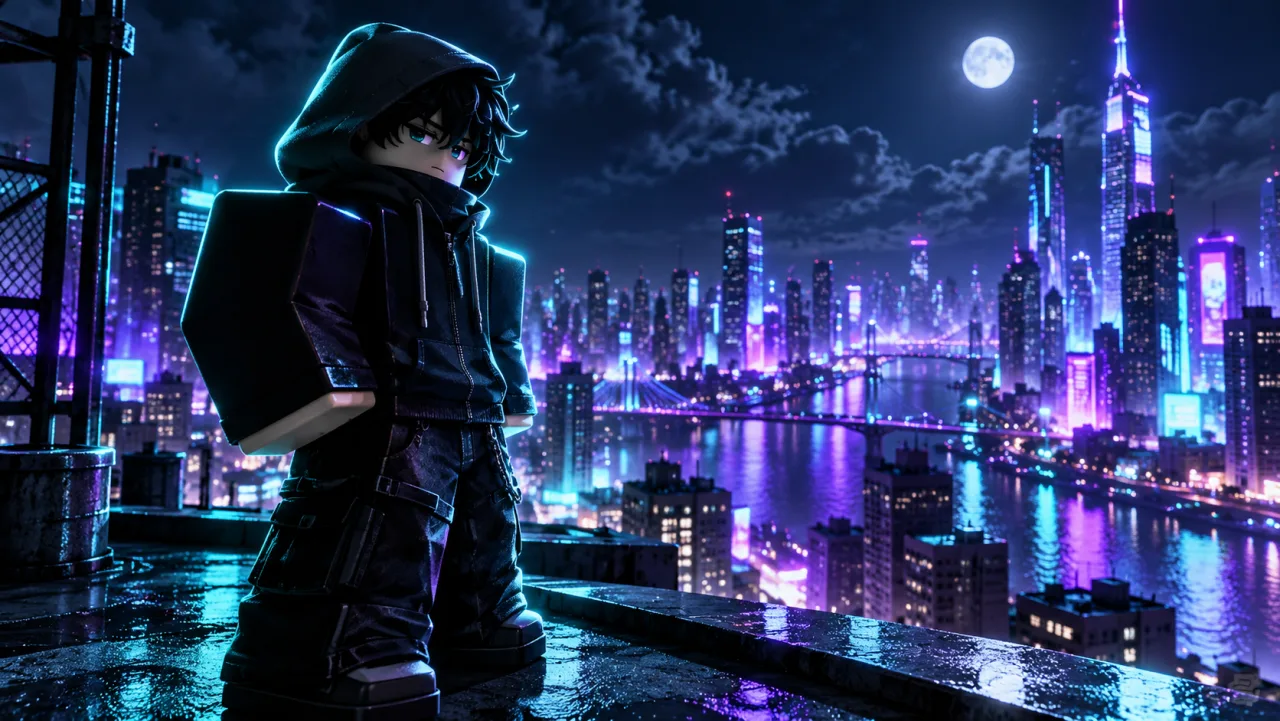
Prompt
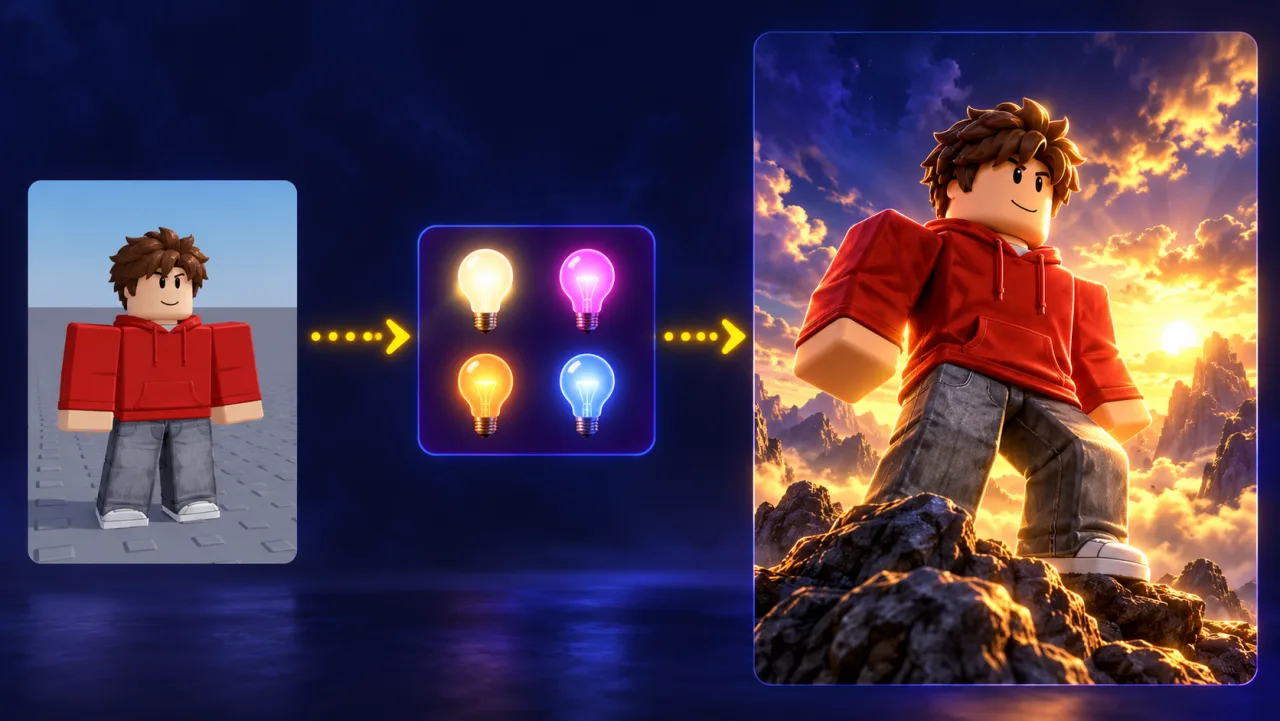
Every scene came from one short prompt. Pick a Roblox GFX background, then upload your avatar to make it yours.
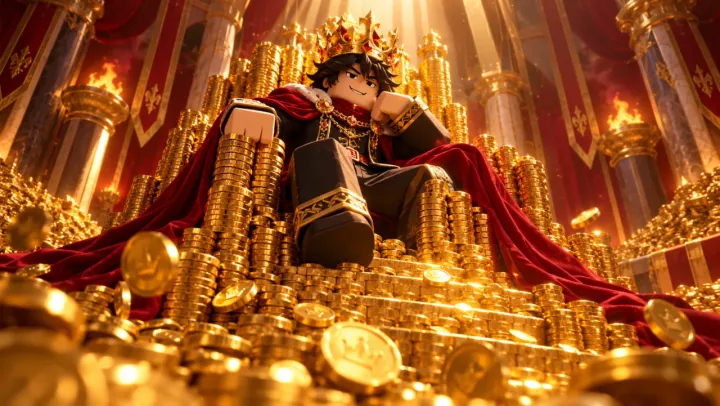
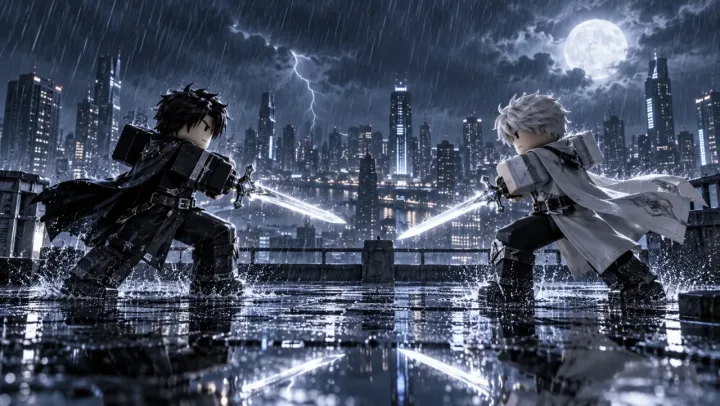
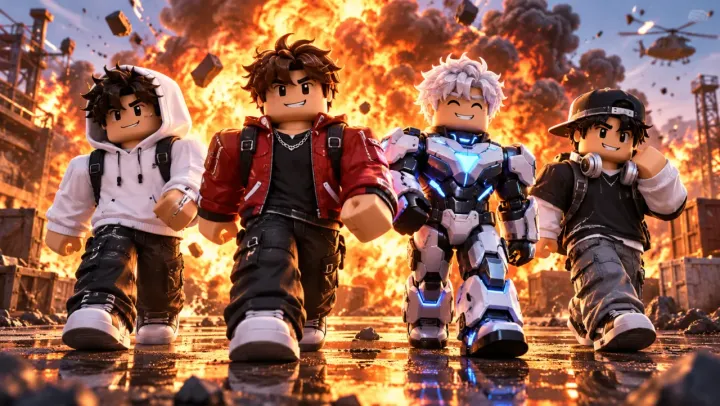
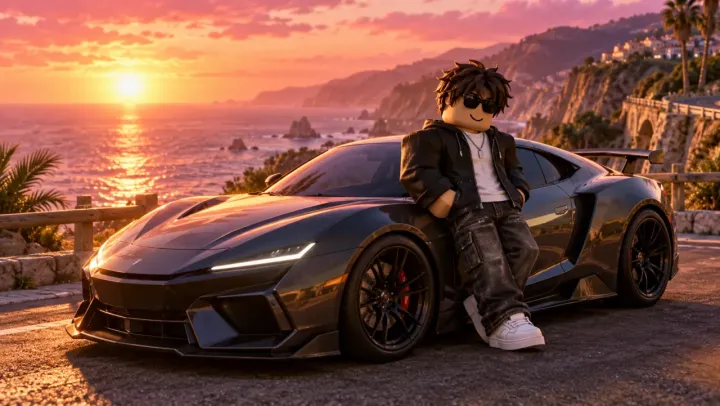
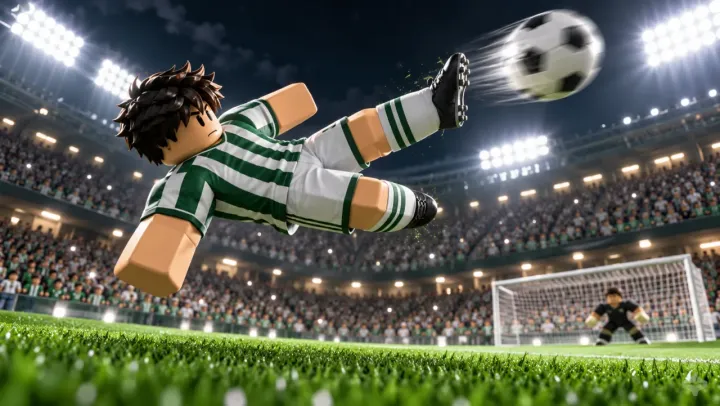
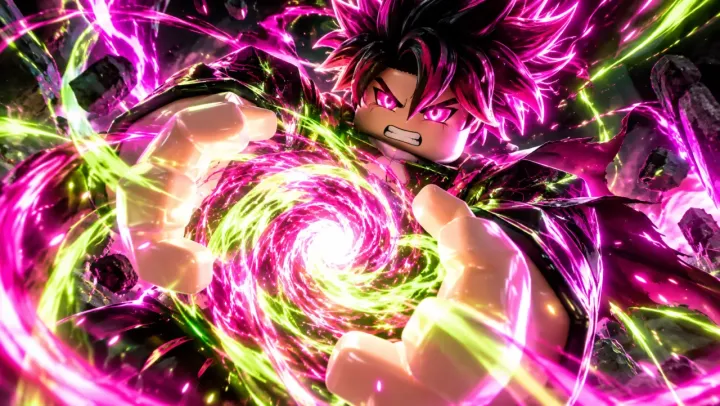
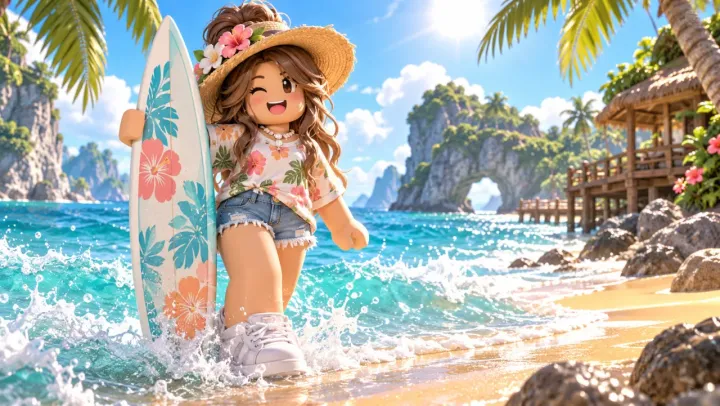
GFX is short for graphics. A Roblox GFX, sometimes called a Roblox render, is a posed, lit picture of an avatar, used as a profile picture, a channel avatar, a group icon or art for a game page.
The classic way is to export your avatar from Studio, fix the rig in Blender, light the scene and render it. Many players pay an artist instead and wait days for a slot.
This Roblox GFX maker is an AI image tool. It reads your avatar screenshot and your one-line scene, then paints a new 2D image. It does not open a 3D file.
Upload a screenshot or a Studio render of your character, a JPEG, PNG or WebP under 30 MB. The Roblox GFX maker keeps your outfit, hair and colors and builds the scene around them, so the result looks like you, not a stock character.
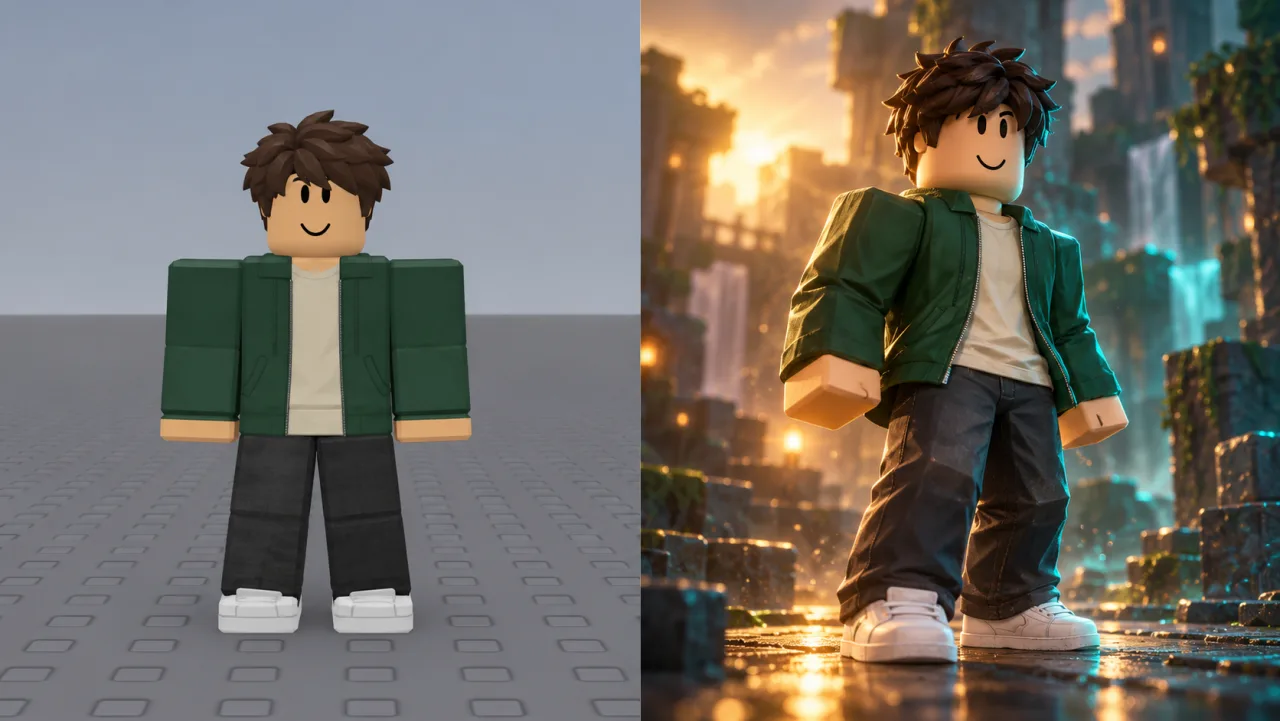
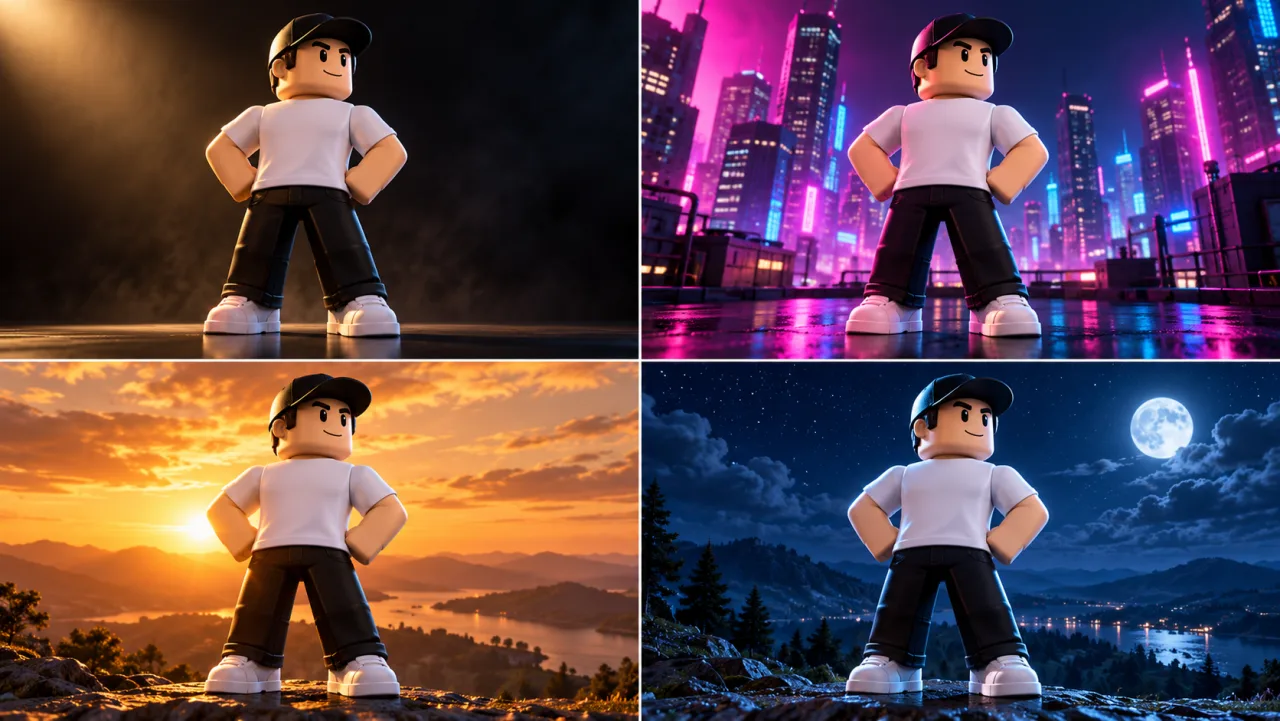
Lighting is what makes a render look finished, and it is the hardest part in Blender. Choose Cinematic, Neon, Sunset or Night and add the mood in one line, like “rim light, fog, rainy rooftop”.
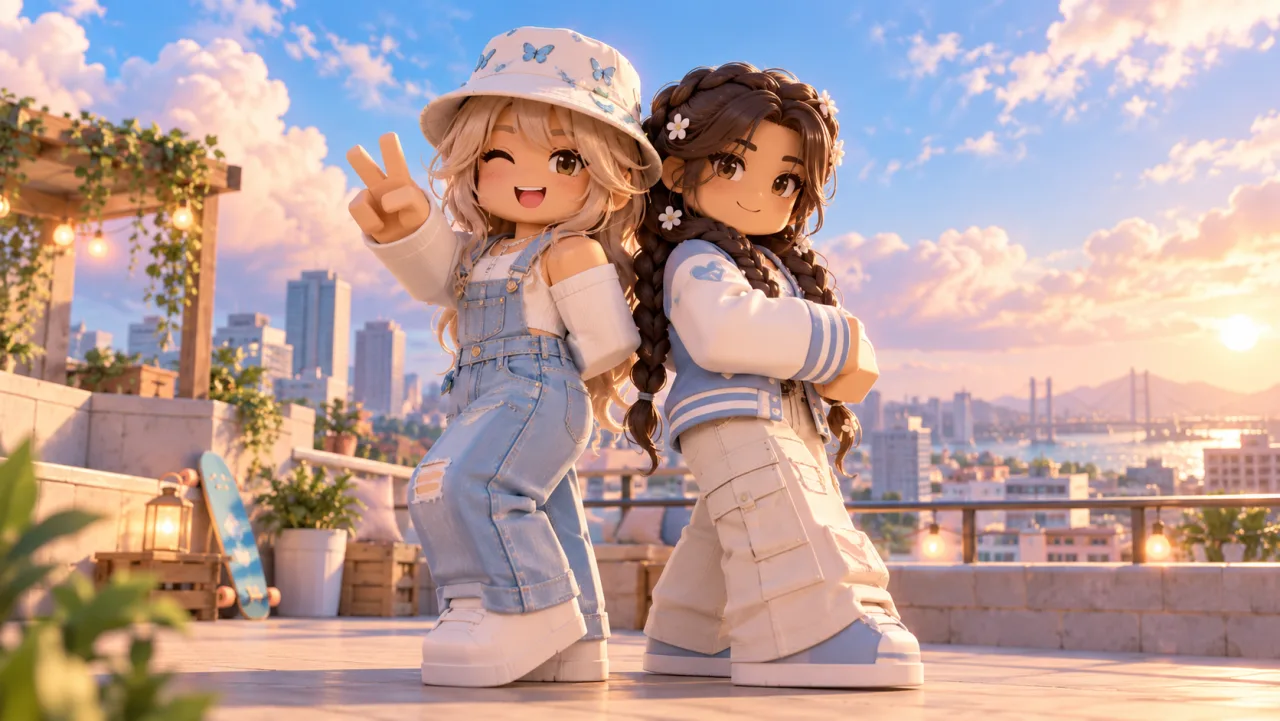
Duo and squad shots are some of the most requested. In the workspace, Multi Fusion takes several reference images, so you can add a friend’s render and pose both avatars in the same shot.
Pick the closest idea, swap in your avatar, then edit the brief before you run it.
“Glossy close-up, heart hands, sparkles”
“Half the face in shadow, one red accent”
“Big grin, headphones, pointing at you”
“Three members, arms crossed, in a ring of light”
“Cozy sweater, a gift box, warm cafe light”
“Knight raising a glowing sword in a dungeon”
Take a screenshot of your character in the game or in Studio, with the whole avatar in frame. Skip it and the AI invents one from your words.
“My avatar on a cliff at night, cape blowing, fog.” Choose a lighting preset, then 16:9 for a banner or 1:1 for a pfp.
Run it again for another version or another light. Keep the one that looks most like you, then post your Roblox GFX or cut it out with the Background Remover in the editor (1 credit).
Where a Roblox GFX usually ends up, and the shape to ask the Roblox GFX maker for.
Sources: Roblox Creator Hub: thumbnails · icons · badges
Nothing to install and no avatar to export. It works from a picture, so hair and hats never come apart.
It asks for a screenshot, never your Roblox password or a file to run. Anyone asking for those is not making you art.
Artists often book days or weeks ahead. Here the Roblox GFX maker returns art from one prompt, and you can try another light right away.
This is AI art, not a 3D render. Compare the result with your real avatar and keep the version that looks most like you.
Paid plans include commercial use, so your art can front your game page or a sponsored video.
The cost shows before a run starts, and a run that fails returns its credits.
GFX means graphics. In Roblox it names a posed, lit picture of an avatar, made for a profile picture, a thumbnail, a banner or a group icon.
Upload a screenshot of your avatar to the Roblox GFX maker, describe the scene in one line and pick a lighting preset. It paints the image for you, so there is no rig to import and no scene to light.
The Roblox GFX maker runs in the browser, so there is nothing to install. Screenshot your avatar in the Roblox app, upload it to the Roblox GFX maker and download the result.
It follows the outfit, hair and colors in your screenshot, but AI can change small details like a face or an accessory. Use a clear, full-body screenshot and pick the closest of the versions you get.
Describe the place in your prompt, like a neon city, a throne room or a stadium, or start from one of the scenes above. For a cut-out avatar on your own Roblox GFX background, ask for a solid color and run the Background Remover in the editor (1 credit).
It runs on credits. Plans start at $9.90 a month for 200 credits and credit packs at $19.99. One image costs 5 to 40 credits, shown before you generate.
Be careful. Scammers offer free GFX, then ask you to run a file or paste browser data that gives them your account. The Roblox GFX maker only needs a picture of your avatar.
There is no single size. Use 1:1 for a Roblox GFX pfp and 16:9 for thumbnails and banners. Output is 1K on the free plan and up to 4K on Creator, depending on the model.
Paid subscriptions include commercial use, so you can put an image from the Roblox GFX maker on a game page or a monetized channel.
Upload a screenshot of your avatar and get a cinematic GFX, no Blender needed.
Make a Roblox GFX